


2. Google Workspace Preparation
Prepare the integration account, admin role, Google Cloud project, and APIs. This step is required regardless of the authentication method.
Step 1: Dedicated Integration Account and Admin Role
The app calls Google APIs with the admin privileges of the delegated account (service account method) or the consenting account (OAuth method). Even if OAuth scopes are registered, API calls are denied when this account has no admin privileges, so both methods need this step. However, if you use only the Drive apps and spreadsheet query commands with the OAuth method, you can skip the admin role.
Instead of a super admin, create a custom admin role with only the privileges you need and assign it to this account.
-
In the Google Workspace Admin console, go to Directory > Users, create a dedicated integration user account, and sign in with it once to accept the terms and set the password.
-
Go to Account > Admin roles and click Create new role.

-
Enter a Name (required) and Description (optional), and click Continue.

-
In Admin privileges, select the privileges for the features you will use, and click Continue. See the "Admin privileges" column in 1. Required Permissions.

To use all features, select the following privileges.
Privilege Used for Reports Audit logs (admin activity, login, Drive, Meet, Chat, OAuth token) Services > Alert Center > Full access > View access Alert Center (service account method only) Domain Management Domain, user, and group lists Users > Read User list Groups > Read Group list, groupoption of the user listServices > Security Center > Activity Rules > View, Services > Security Center > Audit and investigation > View > Rules (Optional) Activity rule alerts -
Review the selected privileges and click Create role.

-
On the role details page, click Admins > Assign members.

-
Enter the email of the dedicated integration account, press Enter, and click Assign role.

Step 2: Google Cloud Project and APIs
-
In the Google Cloud console, select your organization at the top and click New project.

-
Enter a project name (e.g.,
Logpresso App) and click Create.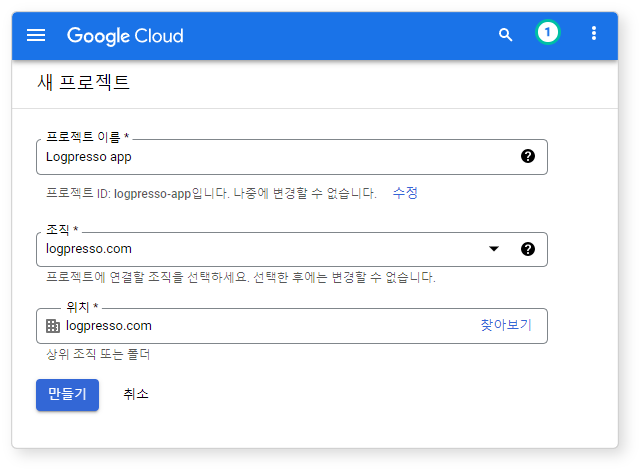
-
Switch to the new project in the project selector at the top.
-
Enter the API name from the table below in the search bar at the top, and click the API in the results. You can also search in APIs & Services > Library in the left menu.
-
On the API details page, click Enable. If the API is already enabled, a Manage button appears instead of Enable. Repeat steps 4 and 5 for each API your features need. It may take a few minutes for the change to take effect.
You can also check the API for each feature in the "Google Cloud API" column of 1. Required Permissions.
API Needed for Admin SDK API Audit logs, domains, users, groups Google Workspace Alert Center API Alert Center (service account method only) Google Drive API Drive activity logs, Drive connected apps Google Sheets API Reading and writing spreadsheets 


