


User Guide
File Analysis Playbook Configuration
You can create a playbook that takes a hash value as input and queries malwares.com for information by following the steps below.
Create a New Playbook
Create a new playbook and enter malwares.com File Analysis as the name. Then define a string-type hash parameter in the playbook parameters.
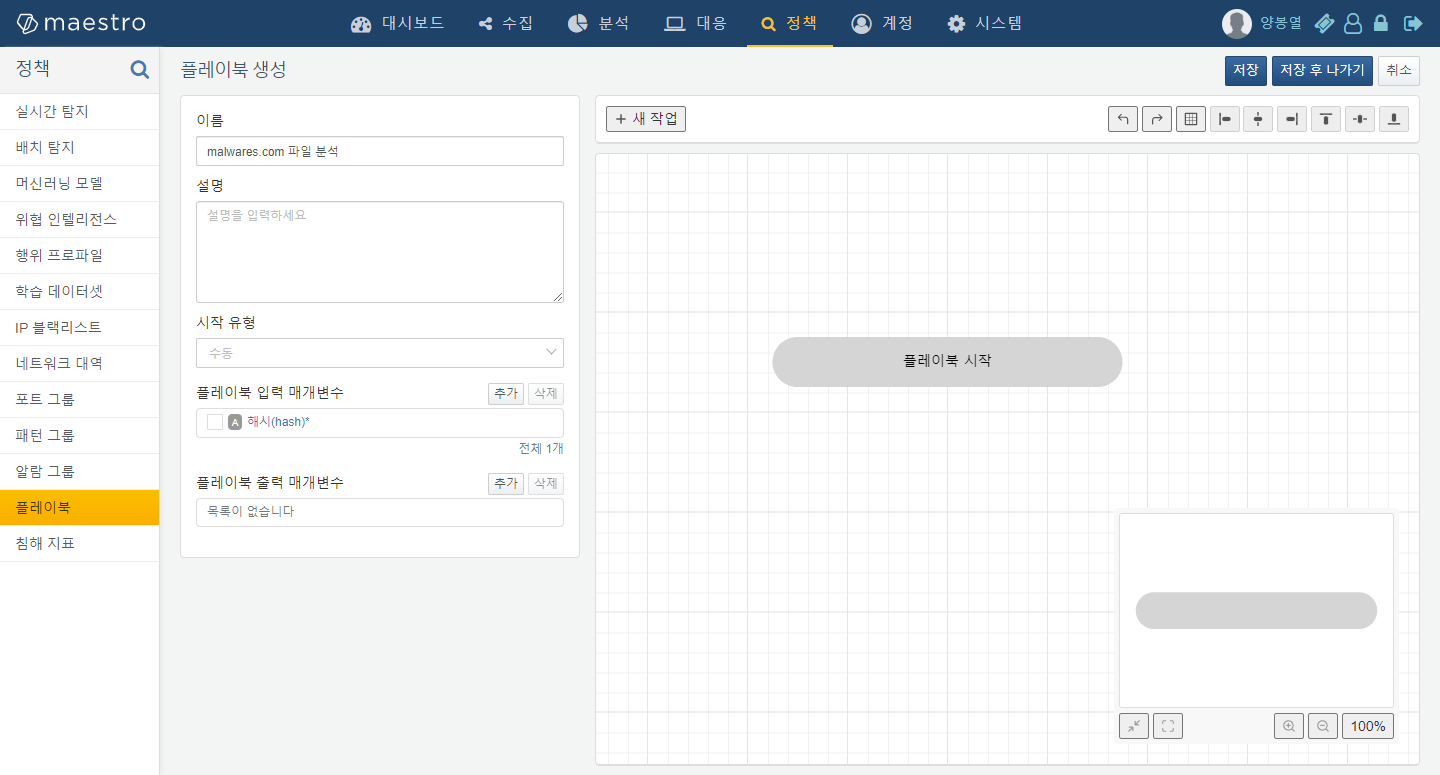
Add a New Task Node
Click the Playbook Start node and drag the blue handle at the bottom to the desired position. A new node will be created at that position, and the task type selection panel will open on the left. Click the Execute type.
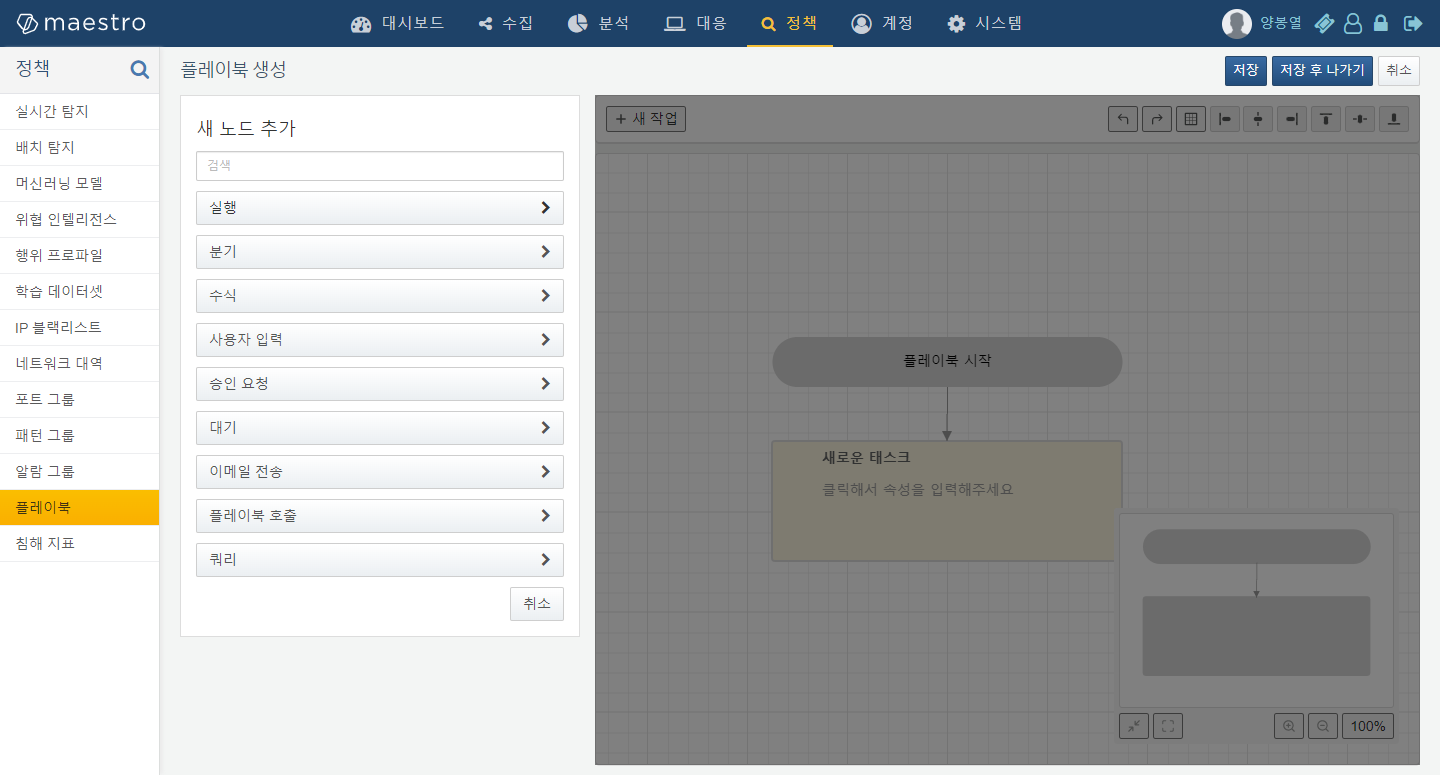
Select File Summary Lookup
Select malwares.com from the command set, and the available malwares.com playbook commands will be displayed in the command section below. Select File Summary Lookup.
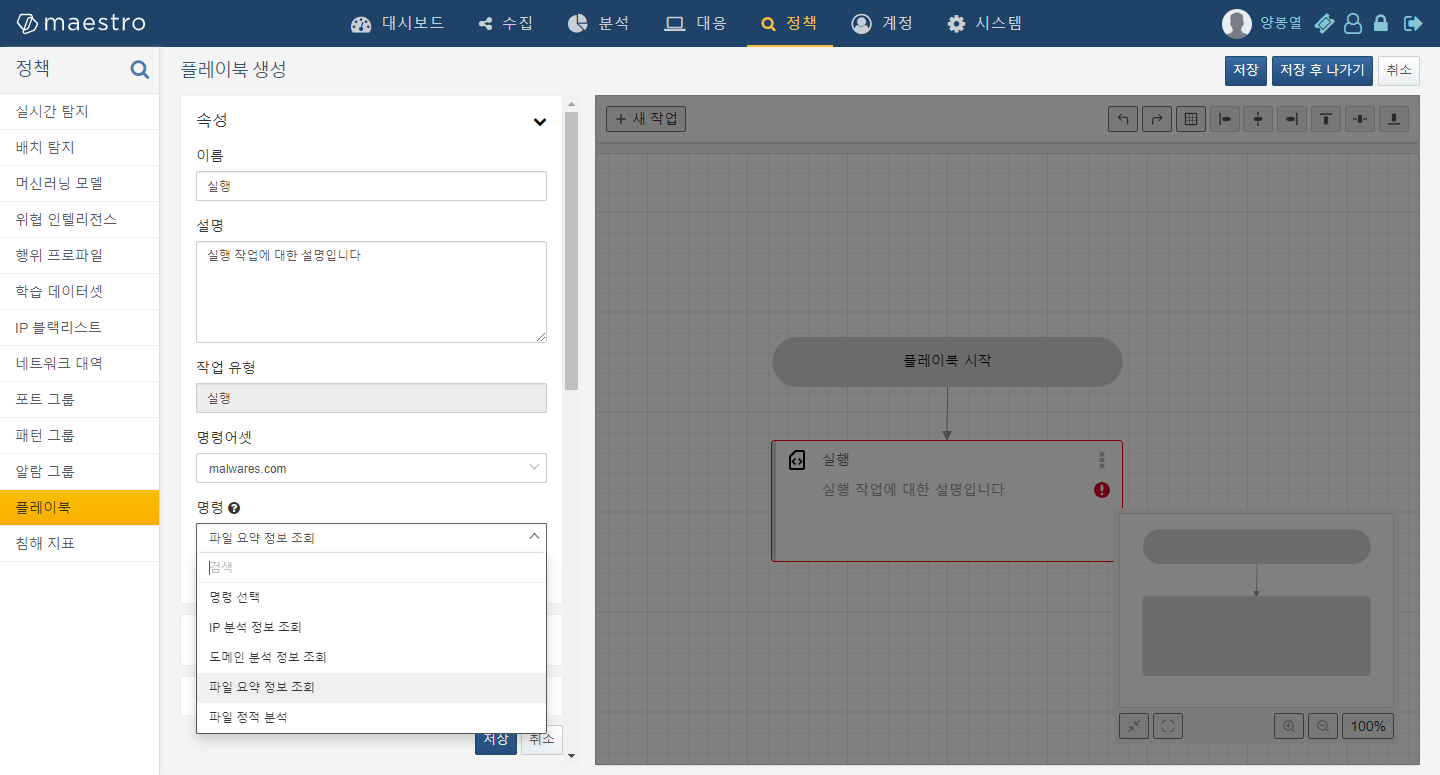
Set Task Name and Description
Click Auto Fill to set the task node's name and description to the default values. Now scroll down.
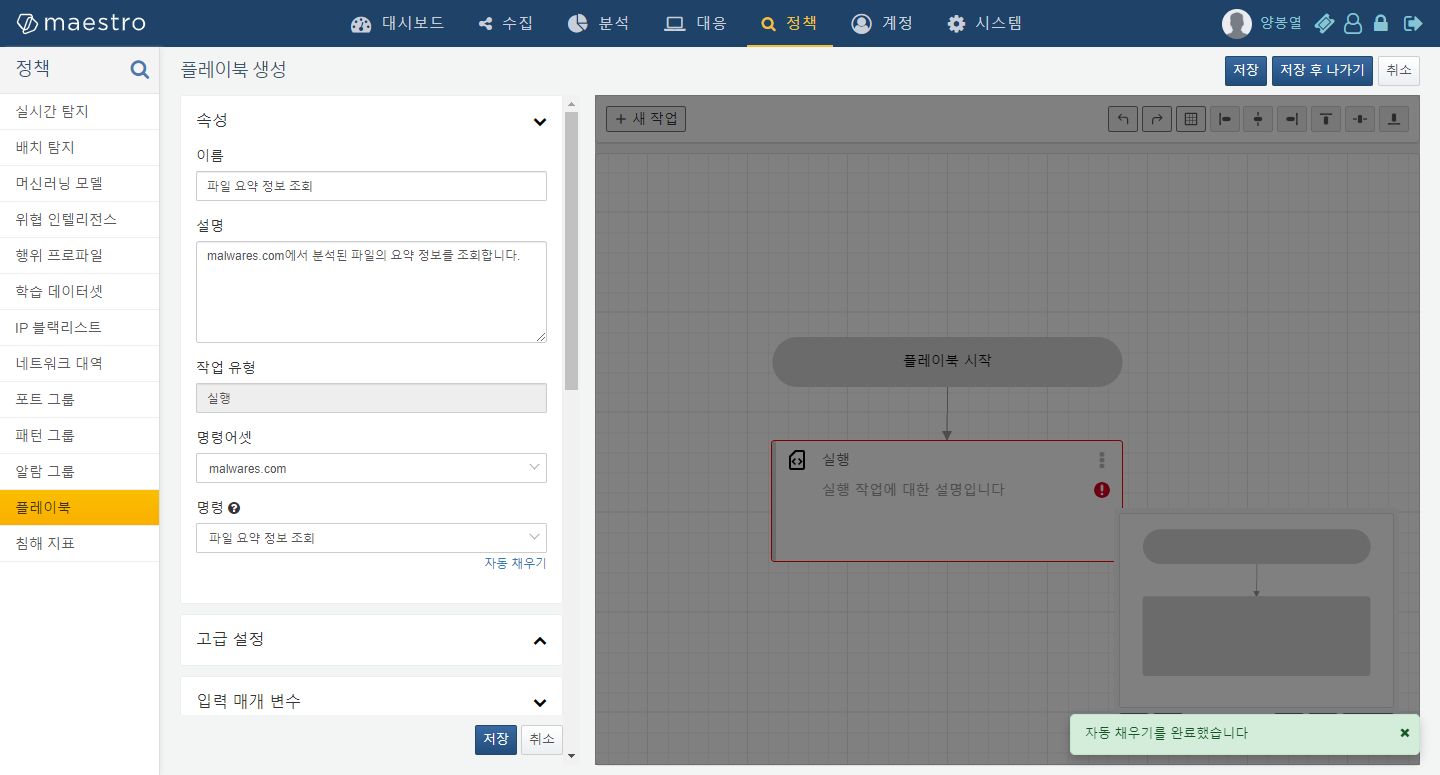
Set Hash Value Parameter
In the input parameters section, variables marked with a wildcard (*) are required. You can select a parameter from the output of the previous step or specify an arbitrary constant string. Here, since we need to use the hash passed as an input parameter when the playbook runs, select hash from the parameters and click the Save button to finish editing.
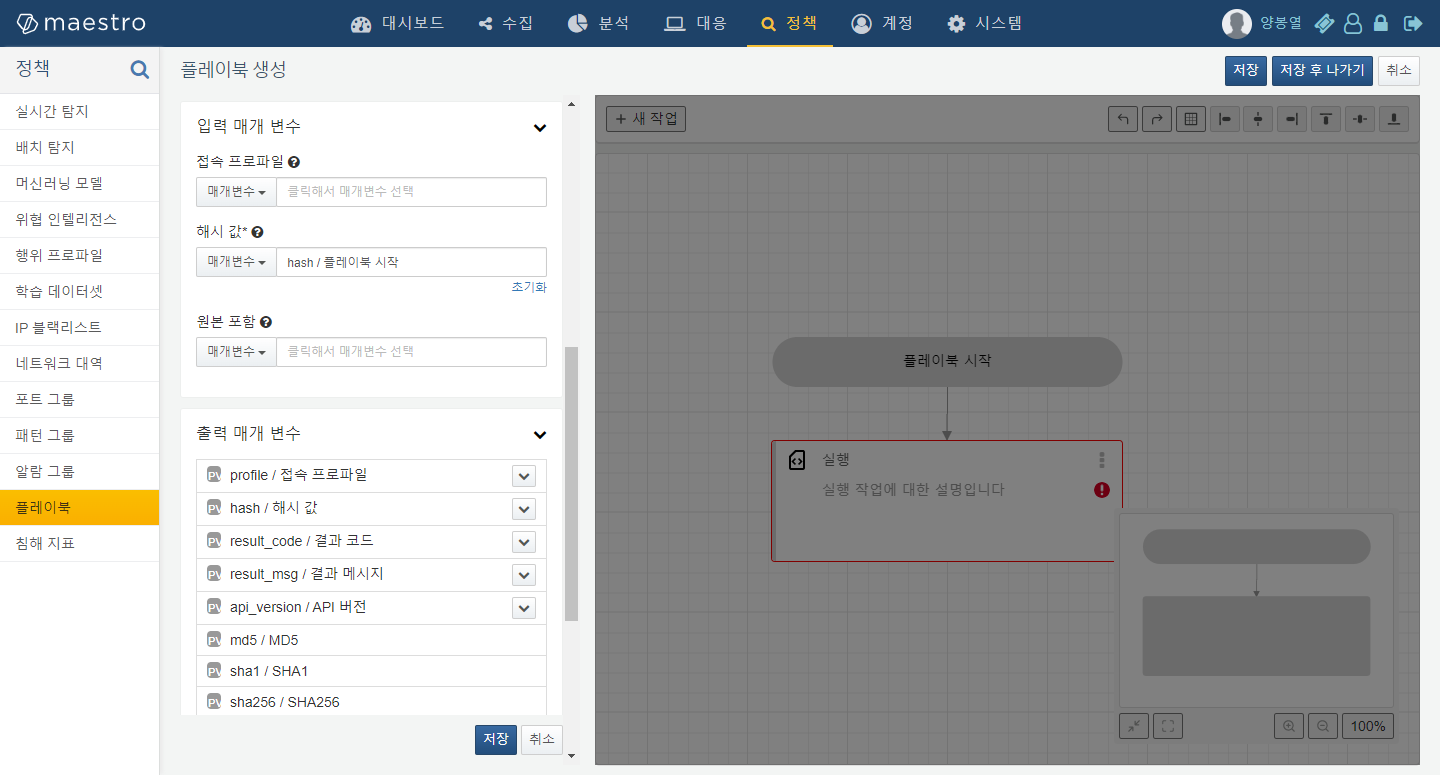
Set Playbook Output Parameters
Now define the playbook output parameters in the left panel. Define ai_score and result_code from the File Summary Lookup output as the playbook's output. This playbook can be called as a sub-playbook. A result_code of 1 in the result indicates that data exists, and the closer the ai_score is to 100, the more likely the file is malicious.
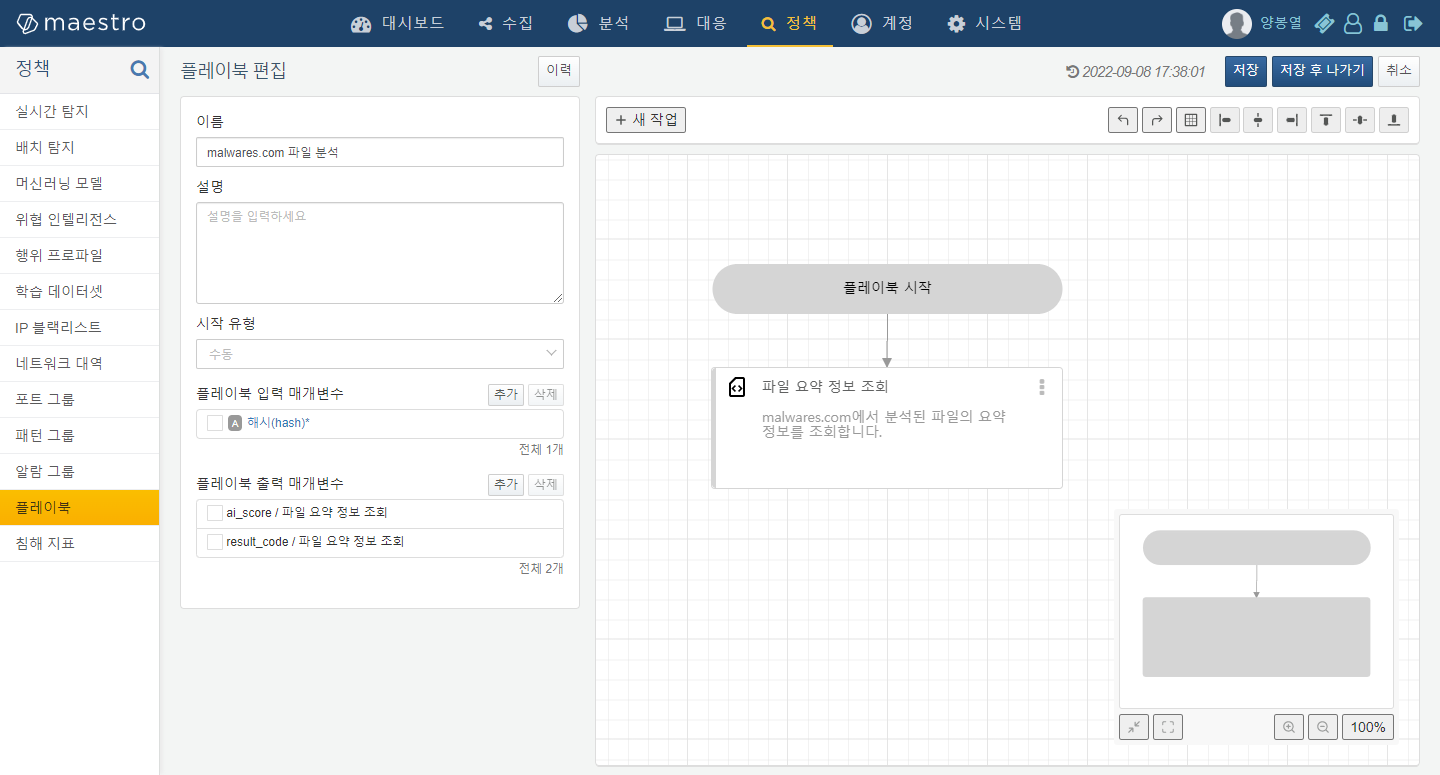
Run the Playbook
Let's test with one of the formbook malware hashes. Click the manual run button in the playbook list and enter the MD5 value CBF9A860C4CA0D62C5FFF329A3E31DE1 in the dialog. Check Show execution history in a new window after running at the top.
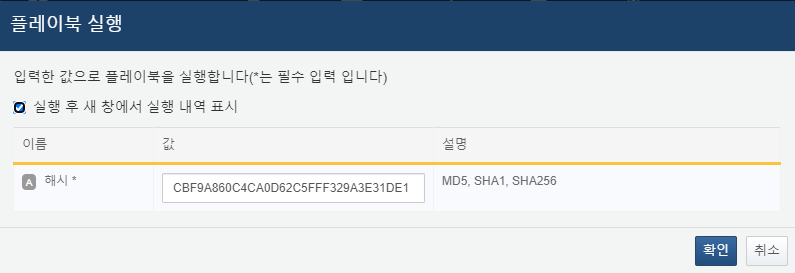
Verify Playbook Execution Results
A new window will pop up. Wait for the File Summary Lookup task to complete, then right-click to view the input and output values in the left panel.
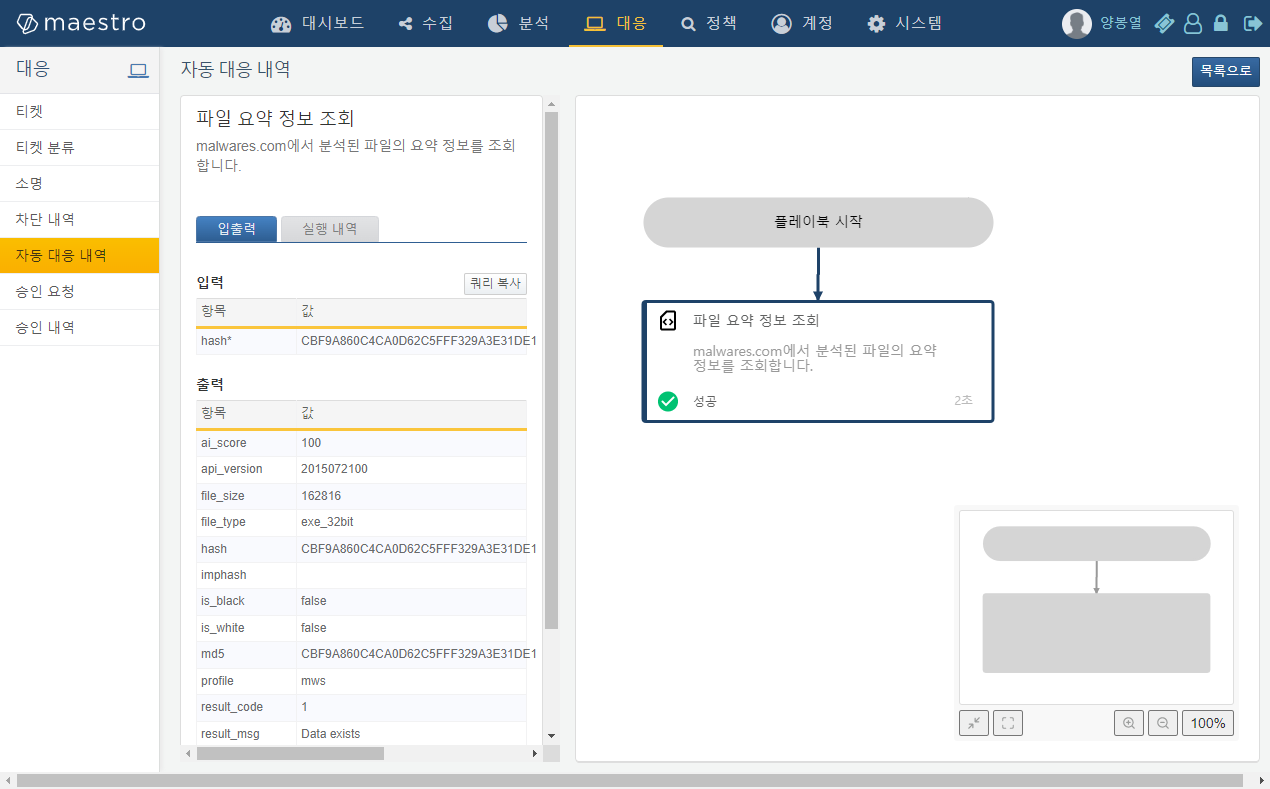
malwares.com returned an ai_score of 100 for the test MD5 hash, diagnosing it as a malicious file. You can check additional characteristics of this file in the tags.
Summary
If you have sufficient API call quota, you can branch based on the ai_score and connect a File Static Analysis task for further analysis. You can call this playbook as a sub-playbook, or add malwares.com analysis tasks directly to an existing playbook.